-
Download the extensions
- When you open a github repoistiories of a browser extension, on the top of the repoistiories, click the green Code button and then select Download as ZIP.
- After you downloaded the zip files, extract the file on your computer.
-
Go to the extensions setting page.
- Open your browser and go to the extensions setting page.
- For Google Chrome go to
chrome://extensions - For Microsoft Edge go to
edge://extensions
-
Turn on "Developer mode".
- There has a switch on the browser and it is called Developer mode, enable it to turn on developer mode.
-
Upload unpacked folder
- Click "Load unpacked" and select the folders where you extract the files.
-
Enable the extensions.
- Turn on your extensions on your browser's extensions setting page
-
Done
- Go to the search bar of the browser and you will see the extensions.
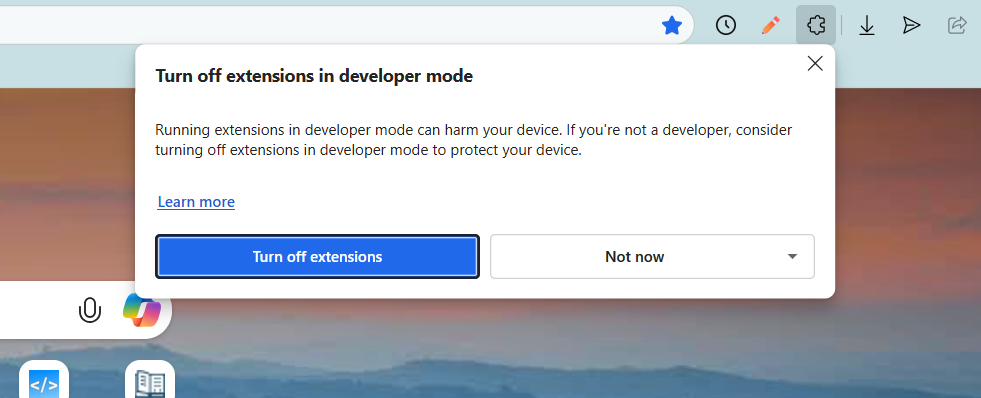
For sercurity reason, browser will remind you with a popup message that said you turned on the developer mode because you installed a third party extensions, if you make sure the extensions is from trused sources or you checked the code that it is safe to use, then you can ignore the message.